Aventuras y Desventuras de un hobbyist

Aventuras y Desventuras de un hobbyist....
Mostrando entradas con la etiqueta Arduino. Mostrar todas las entradas

Arduino Leonardo + Ethernet Shield

Escribo este post a raíz de una pregunta formulada en el foro de Arduino en español.
http://arduino.cc/forum/index.php/topic,106474.msg903626.html#msg903626

El problema: 

Los Ethernet Shields no fucionan con la Placa Vinciduino.

El razonamiento:

Los Ethernet shields usan los pines 10,11,12,13 en el Arduino Uno/duemilanove y el pinout es el siguiente:

Pin Arudino Uno pin microcontroller
10 SS
11 MOSI
12 MISO
13 SCK

En el diseño de Viciduino o Leonardo boards para aprovechar la mayor cantidad de pines del micro(Atmega32u4) se han movido los pines del SPI al conector ISCP

Y el pin SS ha sido asignado al Rx-LED


Pruebas realizadas:


He conectado los pines del ISCP de Vinciduino con los pines de arduino de la siguiente manera:
Eth Shield Vinciduino ISCP
11 MOSI
12 MISO
13 SCK
Ahora bien para poder coger la senal del SS(PB0) del micro he desoldado la resistencia del RXLED para poder soldar un cable y conectarlo al pin 10 del Ethernet shield:

Fucsia = resistencia a quitar
Rojo = pad donde soldé el cable que iría al pin 10 del ethernet shield.

Una vez realizadas las conexiones  me encuentro con que tampoco funciona, y me doy cuenta que el ansia ha podido conmigo ya que no he revisado el código de la librería Ethernet.
##(hacia mucho que no cogía el soldador)

Luego de revisar la librería Ethernet me encuentro con que el equipo Arduino ha editado el archivo w5100.h y han  creado un SS virtual en el pin 10(PB6) de Leonardo/Vinciduino.
Finalmente conecte el pin 10 de Vinciduino al pin1 10 del Ethernet shield y ha funcionado correctamente.

Solución Final:

Simplemente conectar los pines del SCK, MISO,MOSI del  ISCP en nuestra Vinciduino a los pines del ethernet Shield y también el pin  10 de Vinciduino al pin 10 de la Ethernet Shield.
Tal que así:

Arduino + WebSockets II

Please read the first part of this serie: http://yopero-tech.blogspot.com/2012/02/arduino-websockets.html

This project describes how to use WebSockets to display data  taken from Arduino and broadcast it to any Browser with WebSocket support. Test your browser here: http://websocket.org/echo.html

First of all we need to decide what data to display and  what to control in Arduino from the  web page .

In this example I am going to control 3 remote controlled relays that you can buy at your hardware store and I want to display the values from 2 temperature sensors.(DS18S20)

This project is composed out of 3 main parts of software apart from the hardware(Arduino Board):


  1. WebSocket  Server:
    1. Python
    2. Autobahn
      1. Twisted
        1. PySerial
  2. MCU (Micro Controller Unit)
    1. Arduino Board(Vinciduino in my case).
    2. Arduino IDE or AVR studio.
  3. Client:
    1. Any web server, I use xampp or python to test as localhost.
             

The WebSocket server I setup is run under Windows XP:

First thing is to install Python in my case I have used v 2.7

On Python I have installed the following packages:

If you have installed all of the above, download the files of the project from here:
Serial2WS.rar
Now that we have the WS server I will jump to the Arduino side of the project, as said above I will control 3 lights interactivity and I will get real time data from 2 temperature sensors.
To accomplish that I have hacked the remote control and connected it to the Arduino
You can see my setup in the video at the end of the post.


The Arduino sketch for my setup at the end of this entry( too long to put  in the middle of the entry)

This sketch sends the values of the 2 temperature sensors with id = 1 or 2 in format JSON
Id  \t value
I would say that this is the most important part of the project, send JSON formated data from arduino to python and then python to digest it and broadcast via WS. 
   celsius = (float)raw / 16.0;
   
   //Sending JSON 
    Serial.print(id);
    Serial.print("\t");
    printFloat(celsius , 0);    
    Serial.println();
    //finish sending JSON
later this data is read by the WebSocket server and dispatch to the browser.
def lineReceived(self, line):
      try:
         ## parse data received from MCU
         ##
         data = [int(x) for x in line.split()]

         ## construct PubSub event from raw data
         ##
         evt = {'id': data[0], 'value': data[1]}

         ## publish event to all clients subscribed to topic
         ##
         self.wsMcuFactory._dispatchEvent("http://example.com/mcu#analog-value", evt)

         log.msg("Analog value: %s" % str(evt));
      except ValueError:
         log.err('Unable to parse value %s' % line)


In order to display the values given by Arduino and received by the Websocket server I am  using Smoothie Charts; is a really small charting library designed for live streaming data.( http://smoothiecharts.org/)


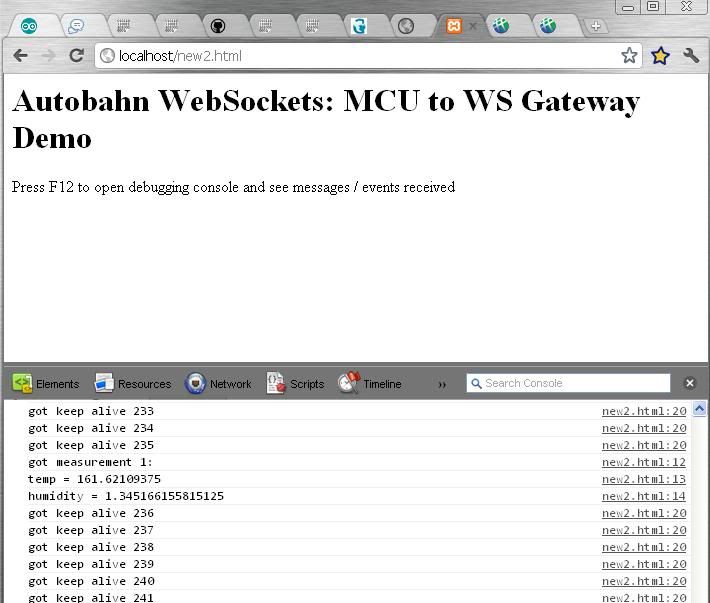
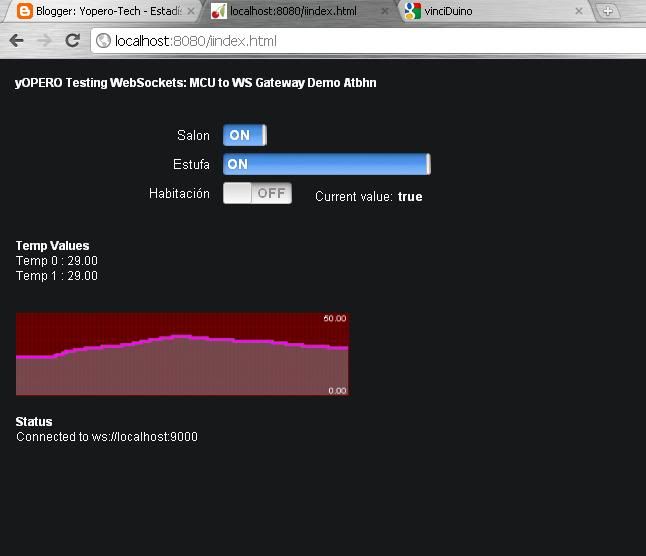
The final results as you see in the video and screenshots.


In the future I will try to load the WebSocket(C++)client directly to a Arduino with an ethernet shield to avoid the use of a PC, but I am not sure how it will impact the infrastructure side of my LAN(opening ports).


Click "Mas informacíon" to preview the Arduino code

Arduino + WebSockets I


“”WebSockets””


Lately I have been exploring ways of plotting data from a MCU to a web browser, at first I was using arduino and firmata which basically allows you to get nice graphics but implementing it to be connected to a webserver was kind of difficult.
Then we have the option of using Ethernet shields but it lacks of enough memory to write good looking web pages, this can be fixed by using short php commands and the process the rest on a webserver however this solutions only applies to projects that do not need speed and real time connections between server and client/web browser.
An example of that is controlling lights, in this case we only need that the light switches on we do not really care about speed, but imagine if you want to control via web an AUV(Autonomous Underwater vehicle) the scenario changes dramatically because what is needed is accuracy and real time communication between web browser and server which is connected to our MCU via RS232,XBEE,Wireless,Ethernet, etc.(I know this scenario is not very common but hey… this paper and websockets technology is experimental so the scenarios too).
I have also explored Python and Pyserial and  I must say that python is so powerful as you can get lots of things with few lines (although you need first to learn it J)
After exploring Python and some packages such as wxPython, PyQt4, PyGtk you can build nice apps to be run on your computer but it was not good enough for me I really like the look of a webpage so I kept searching until I read something about a real fast technology tested on financial applications, that’s the way I heard about WebSockets and then I thought I may use it with my Arduino.
After looking on internet I found that some people has already used web sockets to communicate with a MCU; people from http://mbed.org/cookbook/IOT uses Tornado a python server but unfortunately it does not run on windows due to a Unix dependency.
As I had my computer already setup with python I went looking for a stand alone websocket package, it took me awhile to find a nice piece of code in http://www.tavendo.de/autobahn/ Autobahn provides client and server implementations of WebSockets for Python and Android.
They have the repocitory in github: https://github.com/oberstet/Autobahn and a google group @ http://groups.google.com/group/autobahnws
After contacting with Tobias O. the owner of this repository I presented him what I want to achieve and he helped me a lot.

Now some theory about WebSockets:

What are WebSockets?

“”WebSockets is a technique for two-way communication over one (TCP) socket, a type of PUSH technology. At the moment, it’s still being standardized by the W3C; however, the latest versions of Chrome and Safari have support for WebSockets.””


What do WebSockets Replace?

Although the real purpose of WebSockets. was not primarily designed to replace any of the things that are already in place and working well. For example, it was not designed to be a low-overhead version of AJAX. The purpose is to provide a bidirectional, low latency, full duplex, communication channel between the browser and server. It's real purpose is to enable a new domain of web applications or to improve current ones that are abusing HTTP to achieve bidirectional communication.
But…..Websockets can replace long-polling. This is an interesting concept; the client sends a request to the server – now, rather than the server responding with data it may not have, it essentially keeps the connection open until the fresh, up-to-date data is ready to be sent – the client next receives this, and sends another request. This has its benefits: decreased latency being one of them, as a connection which has already been opened does not require a new connection to be established. However, long-polling isn’t really a piece of fancy technology: it’s also possible for a request to time-out, and thus a new connection will be needed anyway.
Many Ajax applications make use of the above – this can often be attributed to poor resource utilization.
Wouldn’t it be great if the server could wake up one morning and send its data to clients who are willing to listen without some sort of pre established connection? Welcome to the world of PUSH technology!


Next post I will describe the technical part of this project.

Vinciduino-Cargar bootloader con Arduino UNO.

Para realizar la  carga del bootloader en una placa Vinciduino con un Arduino UNO/Diecimila necesitaremos lo siguiente:

1.       Hardware.

a.       Arduino UNO +cable usb

b.      Vinciduino  +cable usb

c.       Cable para conectar Arduino UNO con el ISP de Vinciduino. (6 cables macho por un lado hembra por otro)


d.      Ordenador.

2.       Software.

a.       Arduino IDE 21 o 22(testeado con ambos)


c.       Arduino v 1.00 RC2.

d.      SO Windows 7.


Primero necesitaremos tener instalada la versión Arduino IDE 21 y Arduino IDE 1.00 RC2.

Ahora necesitamos añadir este archivo ArduinoISPleonardo en el folder “examples” de Arduino IDE 21.


Ahora conectamos nuestro Arduino UNO  abrimos Arduino IDE 21 seleccionamos en Tools.

Bord= Arduino UNO

Serial Port= COM del Arduino

Abrimos y  cargamos  el sketch que hemos añadido en “examples”


Para estar completamente seguros de que nuestro hardware es decir la placa Vinciduino esta con funcionando correctamente debemos hacer la siguiente comprobación:


Enchufar la placa Vinciduino mediante un cable USB al ordenador, si todo esta correcto veremos el siguiente mensaje:


<<Para las personas que hayan soldado las placas:
Es muy importante realizar la comprobación descrita arriba antes de iniciar la carga del bootloader ya que hay la posibilidad de pensar que el proceso de cargar el bootloader no funciona cuando en realidad lo que no funciona es nuestro hardware debido a soldaduras mal hechas o componentes mal ubicados>>

El siguiente paso es conectar nuestro Arduino UNO a Vinciduino.

Mediante el  conector ISP solo y únicamente ya que he intentado hacerlo como se hace con Arduinos (http://arduino.cc/es/Tutorial/ArduinoISP)y no funciona. 


Una vez que tenemos la conexión como en la imagen de arriba procedemos a cerrar ArduinoIDE 21 y abrir Arduino 1.00 RC2. En “Tools” seleccionamos:

Board= Arduino Leonardo

Serial Port = COM del Arduino

Programmer = Arduino as ISP


Una vez tengamos todos los settings procedemos a cargar el bootloder:


Presionamos el botón de reset de la  Vinciduino(para ponerlo en modo bootloader) he inmediatamente hacemos click en “Burn Bootloader”.


Entonces los leds rx,tx y “L” de Arduino UNO parpadearan intermitente durante aproximadamente 1 minuto. Si todo va bien recibiremos la confirmación:


El Paso siguiente es conectar el Vinciduino a nuestro ordenador mediante usb, he probado en dos ordenadores con Windows 7 y en ningún caso reconoce el driver automáticamente por lo que deberemos instalarlo. Debemos ir a al administrador de dispositivos de Windows :


Hacemos click derecho en  Leonardo y actulizamos el controlador seleccionando la siguiente ruta que esta en  la ruta donde hemos instalado Arduino 1.00 RC2.

En mi caso:

C:\Users\yopero\Desktop\arduino-1.0-rc2\drivers


Finalmente volvemos a verificar en el administrador de dispositivos:


Agitador para etching v.1 part 2

No te olvides leer la parte 1 :  http://yopero-tech.blogspot.com/2011/10/agitador-para-etching.html

Siguiendo con este proyecto una vez recibido el Attiny85 he decido montar la placa en una stripboard de 11*11.

Abajo el detalle del circuito completo:


Y aquí el mapa de donde cortar las lineas  y puentes:


Y aquí el detalle de la parte de los componentes:


La carga del codigo en el Attiny85 la he realizado utilizando el siguiente link donde se explica muy claramente los pasos a seguir:
http://txapuzas.blogspot.com/2009/12/paperattinyprogrammer-un-programador.html

El código que he cargado en el Attiny85 es el siguiente:

// Arduino Code:
// etching agitator by yOPERO
//ATTiny45

void setup () {
pinMode(2, OUTPUT);  
   pinMode ( 0 , OUTPUT ) ; // tell Arduino to use pin 0 as OUTPUT
   pinMode ( 1 , OUTPUT ) ; // tell Arduino to use pin 1 as OUTPUT
   // you can use other outputs, they must support PWM
}

void loop () {

    
    digitalWrite(2, HIGH);   // set the LED on
    izquierda();
  delay(500);
    paro();
    delay(200);
  derecha();
  delay(500);
  paro(); 
  delay(3000); 
}
   

void izquierda() {
  analogWrite ( 0 , 150 ) ; // run motor one way half speed
   analogWrite ( 1 , 0   ) ;
}
void derecha() {
analogWrite ( 0 , 0 ) ; // run motor one way half speed
   analogWrite ( 1 , 150   ) ;
}
void paro() {
 analogWrite ( 0 , 0 ) ; // stops motor
   analogWrite ( 1 , 0 ) ;
}


Finalmente aqui las fotos del con el resultado final:


..y un pequeño video del invento funcionando:

Agitador para etching v.1


Luego de un largo periodo de no escribir  pero que he continuado experimentando me dispongo a hacer una herramienta indispensable para el hobbyist; un agitador para etching.


Ya sabéis que cuando queremos realizar una PCB personalizada a nuestros requerimientos tenemos que pedirlas a un fabricante enviándole nuestro diseño, esto sería viable para cuando se necesita hacer una cierta cantidad de PCBs pero cuando solo es una y al menos yo por temas de economía me la fabrico en casa.


Transfiero el diseño a la placa de cobre mediante el método de la plancha y luego procedo a hacer el etching o tratamiento químico de la placa, para ello uso Cloruro Férrico. El procedimiento debemos de hacerlo al aire libre y de ser posible debemos subir la temperatura del cloruro férrico y agitar el recipiente. 


Suena fácil eh?? Pues luego de hacer unas cuantas placas eso de estar moviendo el recipiente es un poco engorroso y aburrido, en el mercado existen agitadores comerciales que hacen que el cloruro férrico este en movimiento y así el etching es mas rápido y efectivo. 
Rapidamente me he hecho un modelo en Sketchup para tener las ideas claras.


Aprovechando que me he encontrado con dos motores DC de unos descolgadores eléctricos de teléfono. 


Los reciclare para hacerme un "etching agitator".


Mi idea es poner un motor en cada extremo del recipiente para que empuje el recipiente hacia el otro lado. Servo 1 envía recipiente a la izquierda luego baja y Servo 2 envía recipiente a la derecha luego baja así sucesivamente. 

Para mantener el recipiente usare dos guías laterales y probablemente algo en la base para un movimiento más suave. 


Para controlar ambos servos usare un Attiny 85(si es que llega desde China) caso contrario un Atmega168 aunque me da pena dejar muchos pines sin uso, cualquiera de los anteriores  con Arduino bootloader  y un h-Briged modelo L293D.


El código que usaré sera el siguiente:
//
/*
 *  CIRC-22 Controlling Motors (L293D)
 * 
 * A demo program which demonstrates how to control two
 * DC motors
 * For more details and links visit: http://tinyurl.com/nsuwln
 */
 
 
//L293 Pin assignments


//Motor one
int enable12 = 9;  //bridge 1 and 2 enable (pin 1 on the 16 pin IC) 
                   //pull this pin HIGH to turn the outputs on and LOW to turn them off
                   //using PWM on this puin will control speed
int in1      = 2;  //in1 (out1 will be HIGH when set HIGH and LOW when set LOW) (pin 2 on the 16 pin IC)
int in2      = 3;  //in2 (out2 will be HIGH when set HIGH and LOW when set LOW) (pin 7 on the 16 pin IC)

//Motor two
int enable34 = 10;  //bridge 1 and 2 enable (pin 1 on the 16 pin IC)
                    //pull this pin HIGH to turn the outputs on and LOW to turn them off
                    //using PWM on this puin will control speed
int in3      = 4;  //in1 (out1 will be HIGH when set HIGH and LOW when set LOW) (pin 2 on the 16 pin IC)
int in4      = 5;  //in2 (out2 will be HIGH when set HIGH and LOW when set LOW) (pin 7 on the 16 pin IC)


void setup(){
  pinMode(enable12, OUTPUT);  //Set the three pins for bridge 1 & 2 to outputs
  pinMode(in1, OUTPUT);
  pinMode(in2, OUTPUT);

  pinMode(enable34, OUTPUT);  //Set the three pins for 3 & 4 to outputs
  pinMode(in3, OUTPUT);
  pinMode(in4, OUTPUT);  
}

void loop(){
  setSpeedMotorOne(255);     //Set the speed of motor one 255 = on 0 = off (simply a call to analogWrite on enable12 pin)
  setSpeedMotorTwo(255);     //Set the speed of motor two 255 = on 0 = off (simply a call to analogWrite on enable34 pin)  
  motorOneForward();         //Spin motor one forwards (set one bridge HIGH and the other LOW)
  motorTwoBackward();        //Spin motor two backwards (set one bridge LOW and the other HIGH)
  delay(1000);               //wait for a second
  brakeMotorOne();           //by leaving the bridge on the motors are braked (stop quicker than setting the speed to zero) (sets both sides of the bridge to LOW)
  brakeMotorTwo();           //by leaving the bridge on the motors are braked (stop quicker than setting the speed to zero) (sets both sides of the bridge to LOW)
  delay(1000);               //wait for a second
  motorOneBackward();        //Spin motor one backwards (set one bridge LOW and the other HIGH)
  motorTwoForward();         //Spin motor two forwards (set one bridge HIGH and the other LOW)
  delay(1000);               //wait for a second
  setSpeedMotorOne(0);       //Set the speed of motor one 255 = on 0 = off (simply a call to analogWrite on enable12 pin)
  setSpeedMotorTwo(0);       //Set the speed of motor two 255 = on 0 = off (simply a call to analogWrite on enable34 pin)    
  delay(1000);               //wait for a second  
}

////// Motor One Routines  ////////////

void motorOneForward(){
 digitalWrite(in1, LOW); 
 digitalWrite(in2, HIGH); 
}

void motorOneBackward(){
 digitalWrite(in1, HIGH); 
 digitalWrite(in2, LOW); 
}   

void setSpeedMotorOne(int newSpeed){
  analogWrite(enable12, newSpeed);
}

void brakeMotorOne(){
 digitalWrite(in3, LOW); 
 digitalWrite(in4, LOW); 
} 

////// Motor Two Routines  ////////////

void motorTwoForward(){
 digitalWrite(in3, LOW); 
 digitalWrite(in4, HIGH); 
}

void motorTwoBackward(){
 digitalWrite(in3, HIGH); 
 digitalWrite(in4, LOW); 
}   

void setSpeedMotorTwo(int newSpeed){
  analogWrite(enable34, newSpeed);
}

void brakeMotorTwo(){
 digitalWrite(in1, LOW); 
 digitalWrite(in2, LOW); 
}   
Y este el esquema de conexión del L293D

Arduino Radiofrecuencia II

En una entrada anterior hice un pequeño experimento con radiofrecuencia con unas luces a control remoto de los chinos, esta vez realizare un montaje de 2 Arduinos  uno receptor y otro emisor.
El emisor tendrá 4 botones que enviaran datos según su estado (high,low) con lo que tendremos 8 valores que serán enviamos en forma de letras a,b,c,d,e,f,g,h,i. Luego la decodificación y posteriores comportamientos serán hechos en el Arduino  con el receptor.
En esta ocasión usare una libreria para Arduino llamada Virtual wire con un emisor y receptor de Aurel:


El código para el emisor seria el siguiente
 
// transmitter.pde
//
// Simple example of how to use VirtualWire to transmit messages
// Implements a simplex (one-way) transmitter with an TX-C1 module
//
// See VirtualWire.h for detailed API docs
// Author: Mike McCauley (mikem@open.com.au)
// Copyright (C) 2008 Mike McCauley
// $Id: transmitter.pde,v 1.3 2009/03/30 00:07:24 mikem Exp $


#include <VirtualWire.h>

void setup()
{
    Serial.begin(9600);      // Debugging only
    Serial.println("setup");

    // Initialise the IO and ISR
    vw_set_ptt_inverted(true); // Required for DR3100
    vw_setup(2000);     // Bits per sec
}

void loop()
{
    const char *msg = "hello";

    digitalWrite(13, true); // Flash a light to show transmitting
    vw_send((uint8_t *)msg, strlen(msg));
    vw_wait_tx(); // Wait until the whole message is gone
    digitalWrite(13, false);
    delay(200);
}


y el código para el receptor:

// receiver.pde
//
// Simple example of how to use VirtualWire to receive messages
// Implements a simplex (one-way) receiver with an Rx-B1 module
//
// See VirtualWire.h for detailed API docs
// Author: Mike McCauley (mikem@open.com.au)
// Copyright (C) 2008 Mike McCauley
// $Id: receiver.pde,v 1.3 2009/03/30 00:07:24 mikem Exp $

#include 

void setup()
{
    Serial.begin(9600); // Debugging only
    Serial.println("setup");

    // Initialise the IO and ISR
    vw_set_ptt_inverted(true); // Required for DR3100
    vw_setup(2000);  // Bits per sec

    vw_rx_start();       // Start the receiver PLL running
}

void loop()
{
    uint8_t buf[VW_MAX_MESSAGE_LEN];
    uint8_t buflen = VW_MAX_MESSAGE_LEN;

    if (vw_get_message(buf, &buflen)) // Non-blocking
    {
 int i;

        digitalWrite(13, true); // Flash a light to show received good message
 // Message with a good checksum received, dump it.
 Serial.print("Got: ");
 
 for (i = 0; i < buflen; i++)
 {
     Serial.print(buf[i], HEX);
     Serial.print(" ");
 }
 Serial.println("");
        digitalWrite(13, false);
    }
}

Real Time clock para Arduino(DS1307)

El uso de un reloj es fundamental en algunos procesos con nuestro arduino especialmente cuando queremos enviar datos usando cualquier protocolo.
El reloj nos servira  para no tener simplemente datos sino saber cuando se han relalizado dichos cambios en los inputs.
Para este proyecto necesitaremos lo siguiente:
  • Arduino
  • Cristal de quarzo de 32.768 kHz
  • MAXIM DS1307
  • Socket de 8 pines
  • CR2032 3v bateria
  • CR2032 PCB socket
  • 2* resistencias de 2.2K.
  • Perfboard.
El diagrama es el siguiente:

    Luego de soldar el resultado es este:


    El código al final del post.

    Mas datos:

    El DS1307 es un reloj/calendario de bajo consumo con 56 bytes SRAM. El reloj/calendario nos da segundos, minutos, horas, dias y años. La fecha al finla del mes is automaticamente ajustada para meses con menos de 31 dias. El DS1307 funciona como esclavo en el us I2C . Se obtine acceso implementando una condición START y dando un codigo de identificación (0x68) seguido por una dirección registrada asi registros subsecuentes puenden ser accedidos secuencialmente. El DS1307 vienen en un 8-pin dip package. 

    Bit 7 del registro 0 es el clock halt (CH) bit. Cuando este bit  se cambia a 1, el oscilador se deshabilitathe y si vuelve a 0, el oscilador se habilita. Si no se cambia a 0 el reloj no funcionara.

    Ds1307 pin out
    Solo los primeros 8 bytes (0x00 - 0x07) son usados por el reloj y los otros 56 se usan com RAM adicional.
    DESCRIPCIÓN DE PINES
    Pins 1, 2 para el cristal de quarzo 32.768kHz no se necesita capacitor.
    Pin 3 VBAT Bateria de backup de 3v.
    Pin 4 GND Ground
    Pin 5 SDA Serial Data Input/Output. SDA es el data input/output para la interface I2C y requiere una resistencia pull-up Arduino pin 4.
    Pin 6 SCL Serial Clock Input. SCL  es el input del reloj para el  I2C y es usado para sincronizar el movimiento de datos en el puerto serie . Arduino pin 5.
    7 SWQ/OUT Square Wave/Output Driver. cuando esta habilitado el  SQWE bit  con valor 1,  SQW/OUT pin outputs uno de cuatro square-wave frecuencias (1Hz, 4kHz, 8kHz, 32kHz). El SQW/OUT pin requiere una resistencia pull-up. SQW/OUT Funciona con  VCC o VBAT . Un LED y 220 ohm resistencia en series conectada a VCC produce 1 HZ blink.  Esta es una buena forma de saber si el reloj esta funcionando.
    8 VCC (5 volts)


    //
    // Maurice Ribble
    // 4-17-2008
    // http://www.glacialwanderer.com/hobbyrobotics
    
    // This code tests the DS1307 Real Time clock on the Arduino board.
    // The ds1307 works in binary coded decimal or BCD.  You can look up
    // bcd in google if you aren't familior with it.  There can output
    // a square wave, but I don't expose that in this code.  See the
    // ds1307 for it's full capabilities.
    
    #include "Wire.h"
    #define DS1307_I2C_ADDRESS 0x68
    
    // Convert normal decimal numbers to binary coded decimal
    byte decToBcd(byte val)
    {
      return ( (val/10*16) + (val%10) );
    }
    
    // Convert binary coded decimal to normal decimal numbers
    byte bcdToDec(byte val)
    {
      return ( (val/16*10) + (val%16) );
    }
    
    // Stops the DS1307, but it has the side effect of setting seconds to 0
    // Probably only want to use this for testing
    /*void stopDs1307()
    {
      Wire.beginTransmission(DS1307_I2C_ADDRESS);
      Wire.send(0);
      Wire.send(0x80);
      Wire.endTransmission();
    }*/
    
    // 1) Sets the date and time on the ds1307
    // 2) Starts the clock
    // 3) Sets hour mode to 24 hour clock
    // Assumes you're passing in valid numbers
    void setDateDs1307(byte second,        // 0-59
                       byte minute,        // 0-59
                       byte hour,          // 1-23
                       byte dayOfWeek,     // 1-7
                       byte dayOfMonth,    // 1-28/29/30/31
                       byte month,         // 1-12
                       byte year)          // 0-99
    {
       Wire.beginTransmission(DS1307_I2C_ADDRESS);
       Wire.send(0);
       Wire.send(decToBcd(second));    // 0 to bit 7 starts the clock
       Wire.send(decToBcd(minute));
       Wire.send(decToBcd(hour));      // If you want 12 hour am/pm you need to set
                                       // bit 6 (also need to change readDateDs1307)
       Wire.send(decToBcd(dayOfWeek));
       Wire.send(decToBcd(dayOfMonth));
       Wire.send(decToBcd(month));
       Wire.send(decToBcd(year));
       Wire.endTransmission();
    }
    
    // Gets the date and time from the ds1307
    void getDateDs1307(byte *second,
              byte *minute,
              byte *hour,
              byte *dayOfWeek,
              byte *dayOfMonth,
              byte *month,
              byte *year)
    {
      // Reset the register pointer
      Wire.beginTransmission(DS1307_I2C_ADDRESS);
      Wire.send(0);
      Wire.endTransmission();
    
      Wire.requestFrom(DS1307_I2C_ADDRESS, 7);
    
      // A few of these need masks because certain bits are control bits
      *second     = bcdToDec(Wire.receive() & 0x7f);
      *minute     = bcdToDec(Wire.receive());
      *hour       = bcdToDec(Wire.receive() & 0x3f);  // Need to change this if 12 hour am/pm
      *dayOfWeek  = bcdToDec(Wire.receive());
      *dayOfMonth = bcdToDec(Wire.receive());
      *month      = bcdToDec(Wire.receive());
      *year       = bcdToDec(Wire.receive());
    }
    
    void setup()
    {
      byte second, minute, hour, dayOfWeek, dayOfMonth, month, year;
      Wire.begin();
      Serial.begin(9600);
    
      // Change these values to what you want to set your clock to.
      // You probably only want to set your clock once and then remove
      // the setDateDs1307 call.
      second = 45;
      minute = 3;
      hour = 7;
      dayOfWeek = 5;
      dayOfMonth = 17;
      month = 4;
      year = 8;
      setDateDs1307(second, minute, hour, dayOfWeek, dayOfMonth, month, year);
    }
    
    void loop()
    {
      byte second, minute, hour, dayOfWeek, dayOfMonth, month, year;
    
      getDateDs1307(&second, &minute, &hour, &dayOfWeek, &dayOfMonth, &month, &year);
      Serial.print(hour, DEC);
      Serial.print(":");
      Serial.print(minute, DEC);
      Serial.print(":");
      Serial.print(second, DEC);
      Serial.print("  ");
      Serial.print(month, DEC);
      Serial.print("/");
      Serial.print(dayOfMonth, DEC);
      Serial.print("/");
      Serial.print(year, DEC);
      Serial.print("  Day_of_week:");
      Serial.println(dayOfWeek, DEC);
    
      delay(1000);
    }


    Arduino RS232 Shield

    Me pareció interesante la idea de interconectar Arduinos y así formar redes, para ello tenemos diferentes formas de hacerlo: RS232, I2C,RS485 y BusCAN.
    Iré investigando estos 4 protocolos en el orden citado arriba.
    En esta ocasión toca ver el RS232 que también sirve para conectar nuestro ***duino al ordenador.
    Para comunicar RS232 y Arduino que utiliza TTL necesitaremos convertir la señal, se lo puede hacer a través de un sistema simple con transistores y resistencias pero también se puede utilizar un IC dedicado a ello, hablamos del MAX232 de Maxim.
    Existe diferentes tipos de configuraciones, yo he seguido la que se nos presenta en la web de Arduino pero no tuve éxito. Link
    La mayoría de mis proyectos los hago sobre Paperduino en sus diferentes versiones, luego de buscar mucho y probar  encontré un shield para easyduino que  me funciono y sirvió de base este shield.
    El esquema (sch)se muestra en la imagen de abajo.


      La plantilla para el lado del cobre de una Stripboard de 11*11 huecos.
    Imagenes del proceso de soldado.


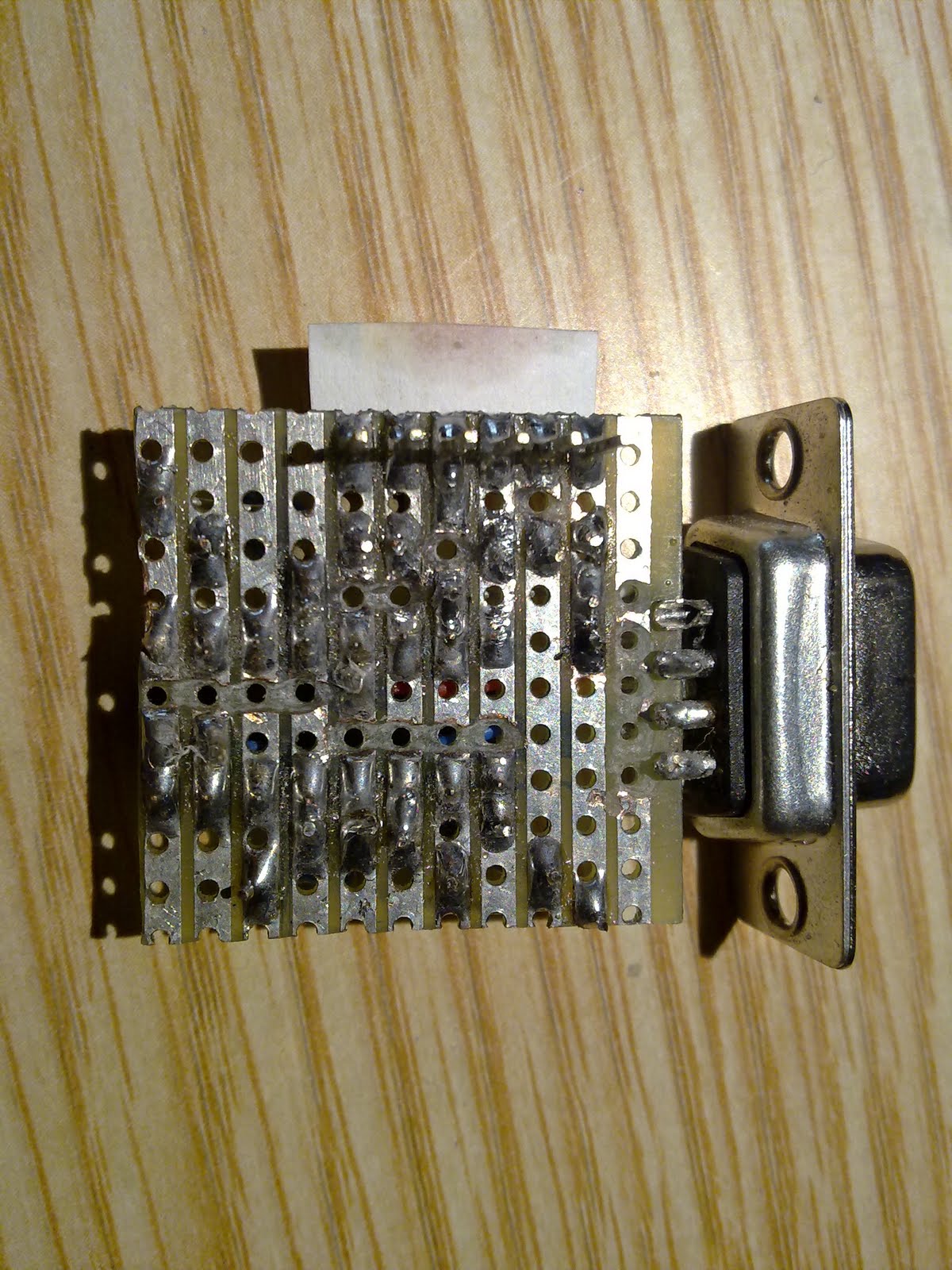
    Y el resultado final luego de soldar es el siguiente:


    Los pines de la derecha en la imagen de arriba sirven para conectarse a **duino:


    Abajo fotos del shield conectado al Papeduino Stripboard y  Paperduino PCB

    Por si alguien esta interesado descargarse el archivo eagle(sch):